Receipt filing for iPhone & iPad

Receipty

Snap a receipt and it's done. On-device AI reads it, names the file, picks the right category, and pulls out the total — then files it into Google Drive or a folder on your device. Your receipts never leave your hands.

Coming soon to the App Store
On-device AI No subscription No telemetry
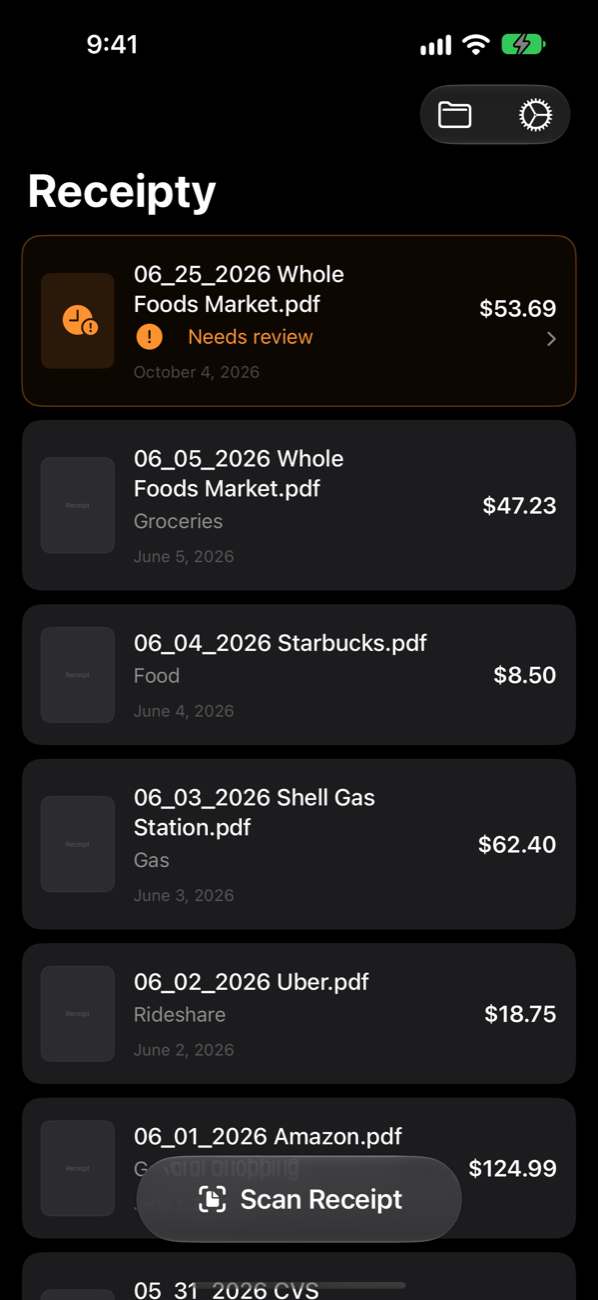
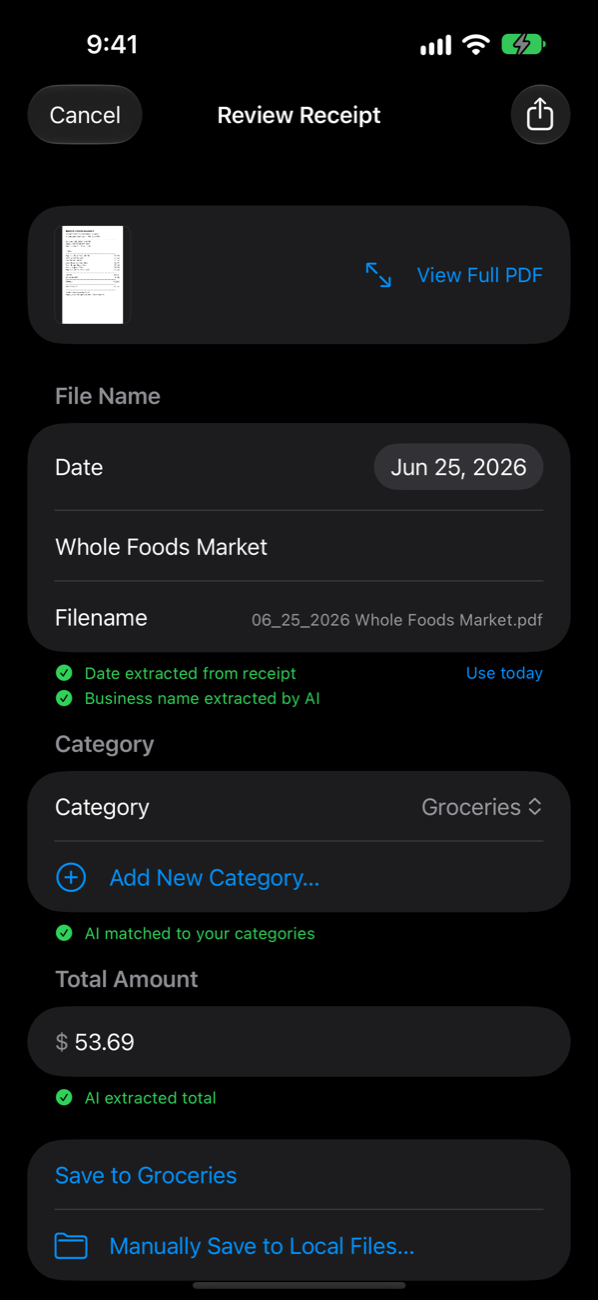
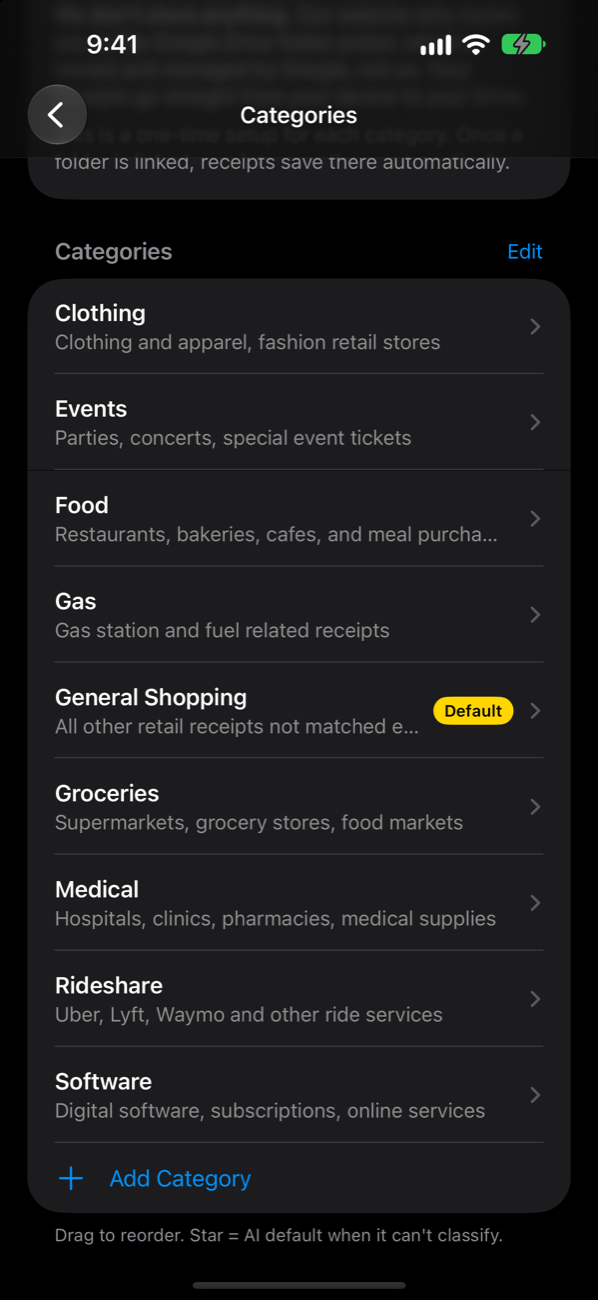
Receipty home screen listing receipts by filename, category, and total, with a newly shared receipt marked Needs review Receipty Review Receipt screen with the date, business name, Groceries category, and $53.69 total all filled in by AI Receipty Categories list with descriptions such as Groceries, Gas, Rideshare, and a General Shopping default
01

What Receipty does

Capture

Scan it or share it.

Point your camera at a paper receipt — multi-page is fine — or share a PDF from Mail, Files, or Safari. Receipty turns it into a clean PDF and gets to work in the background, so you can put your phone away.

Receipty home screen with a freshly processed receipt waiting for review above past receipts
On-device AI

The filing is done for you.

Apple’s on-device intelligence reads the receipt and fills in the date, the business name, the category, and the total, then builds a tidy filename like 06_25_2026 Whole Foods Market.pdf. Green hints mean it’s confident; orange means take a look. Everything stays editable, and you always confirm before it’s saved.

Review Receipt screen with green AI hints for the extracted date, business name, category, and total
Categories

Sorted the way you already work.

Create categories that match how you track spending — Groceries, Rideshare, Software, whatever fits — and give each a short description. The AI uses those descriptions to decide where each receipt belongs, and can write them for you. Link each category to a folder and receipts land there automatically.

Categories list with short descriptions and a starred default category
Saved as PDF

A real file, in a real folder.

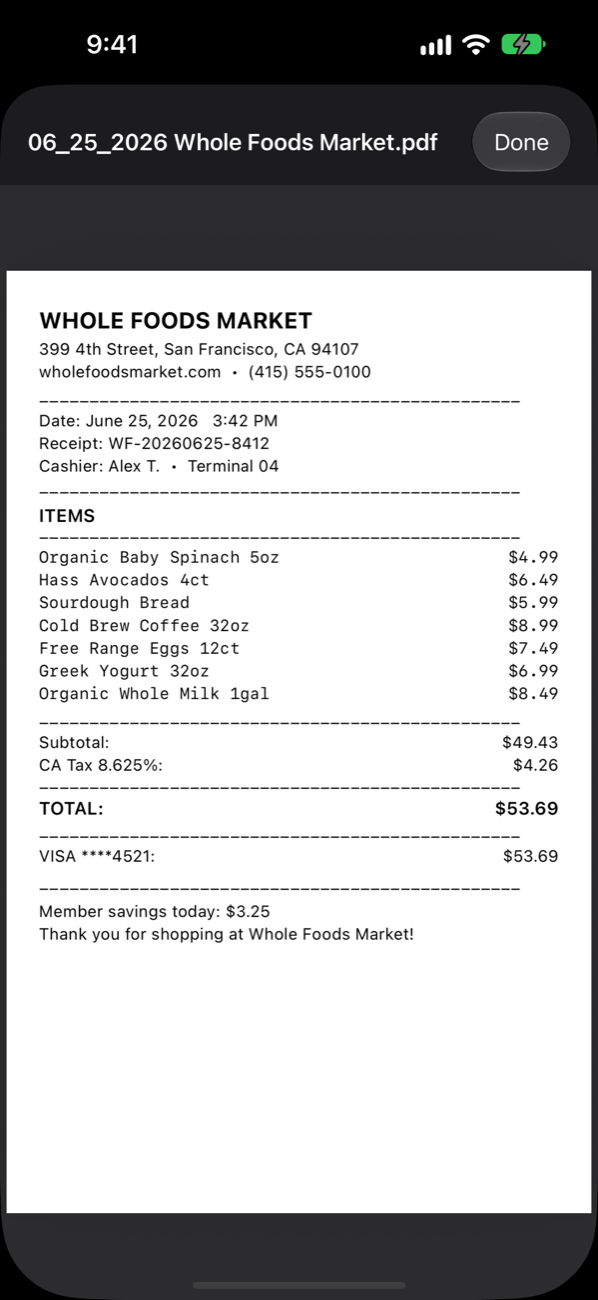
Every receipt is a standard PDF you own — in a folder on your iPhone or iPad, or in your Google Drive. Open it from Receipty, share it with your accountant, or find it in Drive at tax time. No proprietary format, nothing locked in.

A saved receipt PDF named 06_25_2026 Whole Foods Market.pdf open in Receipty
02

How Receipty uses Google Drive

// optional, and only the folders you pick

Connecting Google Drive is optional — Receipty works fully with folders on your device. When you sign in with Google, Receipty asks only for the drive.file permission, which lets it upload the receipts you save into folders you choose. It cannot see, read, or change any other files in your Drive, and your receipts go straight from your device to your Drive — never through our servers.

Tip: star your receipt folders in Google Drive and they’ll show up first, under Starred, when you choose a folder in Receipty.

See the Receipty section of our Privacy Policy for full details.

03

Small touches that add up

// built for tax season, used every day

Multi-page scanning

Long receipt or a stack of pages? Scan them all with the camera and they're saved as one clean PDF.

Share from anywhere

Got a receipt by email? Share the PDF from Mail, Files, or Safari and Receipty picks it up and processes it in the background.

Your date format

Pick MM_DD_YYYY, YYYY-MM-DD, or another format and every filename follows it, so folders sort the way you expect.

Works offline

No signal? Receipts are saved on your device and upload to Google Drive automatically when you're back online.

A default for the odd ones

Mark one category as the default and anything the AI can't confidently place goes there instead of getting lost.

Private by design

Receipts are read on the device that captured them. No account, no analytics, and nothing passes through our servers.

Stop filing receipts

Receipty is coming soon to the App Store for iPhone and iPad. Questions? [email protected]